← Back home

Account management

One browser profile per verified account

A dedicated browser profile is the simplest way to keep multiple verified accounts from touching each other. It costs nothing, takes ten minutes to set up, and prevents the single most common account-management mistake: doing the right thing in the wrong account.

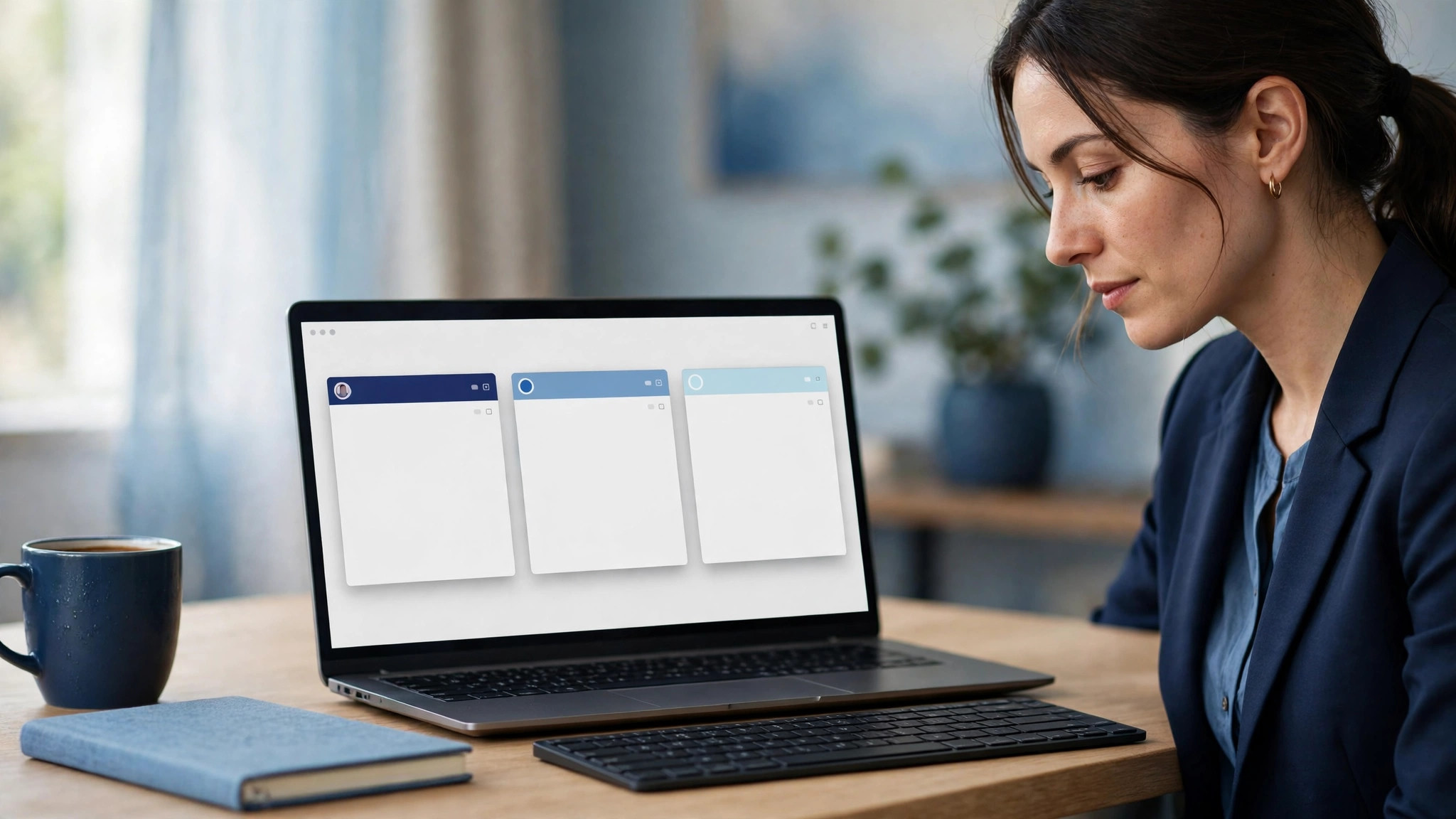
A professional working at a laptop with three separate browser profile windows

Why separation matters

Platforms watch for signals that several accounts are really one person operating carelessly: the same session cookie used for two logins, a payout detail pasted into the wrong dashboard, a password reset requested from the wrong inbox. None of these is suspicious on its own, but together they create exactly the pattern that triggers a review. A dedicated profile removes the whole class of accident. When every account lives in its own walled-off browser, the wrong-account mistake becomes hard to make instead of easy.

There is a second benefit that owners notice even sooner: calm. With one profile per account, you always know which account you are in. The avatar colour, the bookmarks, the pinned tabs and the saved login all agree. There is no more pausing before every click to ask yourself which account this window belongs to — and no more of the sinking feeling that follows realising you just changed a setting on the wrong business.

Profiles also protect you when something goes wrong with one account. If a platform limits an account and asks you to clear cookies, re-verify a device, or sign in again, the cleanup stays inside that account's profile. Your other accounts keep working untouched, because they never shared a cookie jar in the first place.

What a browser profile actually separates

  • Cookies and sessions: Each profile stores its own cookies, so logging into Stripe in one profile never signs you into the same platform in another.
  • Saved passwords and autofill: Credentials saved in one profile never appear in another, which removes the classic mistake of logging into the wrong account with the wrong password.
  • Extensions and settings: An ad-blocker, VPN extension or password manager installed in one profile can be left out of the others, keeping each account's tooling intentional.
  • Browsing history and cache: History, cache and downloaded files stay inside the profile that created them, so there is no cross-contamination between a personal session and a business one.
  • Bookmarks and pinned tabs: Each account gets its own dashboard bookmarks and pinned tabs, which makes it obvious at a glance which account you are working in.
  • Sync and sign-in identity: A profile can stay signed into its own browser-sync account — or stay signed out entirely — without affecting the others.

What a profile does not do is just as important to understand. It does not change your IP address, your device fingerprint, or your network. If two accounts must look like they come from different places, profiles alone will not do that — that is a job for separate devices or network setups. Profiles solve session separation, which is the everyday problem most owners actually face.

Setting it up in Chrome or Edge

  1. 1Click your profile avatar in the top-right corner of Chrome, then choose "Add Chrome profile".
  2. 2Give the profile a clear name — the account name or business, not "Profile 3" — and pick a distinct colour and avatar.
  3. 3Tick "Create a desktop shortcut" so you can open that account's browser directly from your desktop.
  4. 4Open the new profile, sign into the platform with that account's credentials only, and save the password in this profile alone.
  5. 5Pin the platform's dashboard as the first tab and bookmark the pages you use daily.
  6. 6Repeat for each account. Keep the list short: one profile per verified account, plus one personal profile.

Edge works the same way: the profile menu sits in the top-right corner, and the steps are identical. If you use Chrome for business accounts and Edge for personal browsing, that is a fine split too — but keep the rule consistent: one profile, one account, every time.

Setting it up in Firefox

  1. 1Type about:profiles in the address bar and click "Create a New Profile".
  2. 2Name it after the account it belongs to and finish the wizard.
  3. 3Click "Launch profile in new browser" to open it, or set it as the default if this is your main account.
  4. 4Sign into the platform with that account's credentials only, and let Firefox save the login inside this profile.
  5. 5Bookmark the dashboard and add any extensions that belong to this account's workflow.
  6. 6Use about:profiles again whenever you need to open a different account's profile.

Firefox also offers container tabs, which isolate cookies inside a single window. Containers are useful, but they are easier to mix up than full profiles — a container tab looks almost identical to a normal tab. For accounts that matter, a full profile with its own window and its own colour is the safer default.

A naming system that scales

  • Name the profile after the account, not the platform — "Acme LLC — Stripe" beats "Stripe 2" when you own three Stripe accounts.
  • Use the same colour for the profile avatar and the account's entry in your password manager, so the pairing is obvious.
  • Keep a one-line register: profile name, account, and the email it uses. Store it in your password manager, not in a spreadsheet on your desktop.
  • Retire a profile when the account closes. Delete the profile instead of leaving a stale login lying around.
  • Never name a profile after a password, a recovery code, or anything sensitive — profile names are visible on your screen.

Daily habits that keep the separation real

  • Open the right profile before you open the platform. If the avatar colour is wrong, stop — do not log in anyway.
  • Close a profile's window when you finish with that account instead of leaving it open all day.
  • Never copy a link from one profile and paste it into another to "check something quickly" — that is how sessions leak.
  • Check the profile avatar before entering a password. Browsers show it in the top-right corner for exactly this reason.
  • Keep personal browsing in the personal profile. A personal search inside a business profile pollutes the account's fingerprint.
  • After a platform asks you to re-verify, finish the check inside the same profile — do not switch mid-flow.

Mistakes that defeat the whole setup

  • Using one profile for everything and relying on incognito windows to separate accounts — incognito shares the same profile's extensions and settings, and it is easy to forget which window is which.
  • Logging into two accounts on the same platform in two tabs of one profile — the second login overwrites the first session, and actions land on the wrong account.
  • Letting the browser save a password in the wrong profile, then wondering why the login keeps failing in the right one.
  • Installing a shared password manager vault into every profile with auto-fill on — one wrong auto-fill can sign you into the wrong account.
  • Opening a platform link from an email while the wrong profile is active. Always check the profile first, or copy the link and paste it into the right profile's window.
  • Treating profiles as a substitute for real security: profiles separate sessions, they do not replace two-factor authentication, unique passwords, or a recovery plan.

Clean separation

Each account keeps its own cookies, logins and history — no accidental crossovers.

Fewer wrong-account errors

The profile colour, bookmarks and saved login all agree, so you always know where you are.

Contained cleanups

A review or cookie clear on one account stays inside its profile and never touches the others.

Set up your profiles today

Ten minutes now saves you from the wrong-account mistake later. And if you are setting up a new verified account, start it in its own profile from the very first login.